

In Lazarus, the TCanvas.Rectangle method is a routine within the TCanvas class used to draw a rectangle on the canvas. The Brush and Pen properties determine the fill and outline styles used.
This page presents a detailed look at the method and highlights other TCanvas properties and methods relevant to drawing rectangles.
TCanvas.Rectangle
editThe <code>TCanvas.Rectangle method, as its name suggests, draws a rectangle on the canvas and is recognizable by its adherence to this signature:
procedure Rectangle(X1, Y1, X2, Y2: Integer);The elements of the signature are:
- procedure
- This keyword indicates that the following block of code is a procedure, that is, a subroutine that performs a task but does not return a value the way a function would. In some programming languages, the term "procedure" is used interchangeably with "function," though the latter often implies that a value is returned.
- Rectangle
- This is the name of the procedure, signifying that it is intended to work with rectangles, likely performing operations such as drawing or calculating properties.
- (X1, Y1, X2, Y2:)
- The parameters listed in parentheses are the inputs that the procedure accepts. In this case it takes four parameters, namely: <code>X1, <code>Y1, <code>X2 and <code>Y2, representing coordinates or dimensions related to the rectangle. The
X1, Y1pair represents the coordinates of its upper-left corner and theX2, Y2pair represents the coordinates of the lower-right corner. - Integer
- This specifies the data type of each parameter. Here, Integer indicates that all four parameters are integers. This is common in many programming languages to ensure that the values passed to the procedure are whole numbers.
Appearance
editThe appearance of the rectangle is determined by the Brush and Pen properties of the Canvas. The defaults for those properties can be found using:
// Retrieve the current pen color
ShowMessage('Pen Color: ' + ColorToString(Canvas.Pen.Color));

// Retrieve the current brush color
ShowMessage('Brush Color: ' + ColorToString(Canvas.Brush.Color));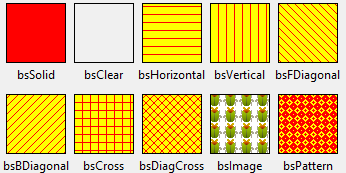 The available brush styles are shown at right.
<div style="clear: right;">
Pen styles
edit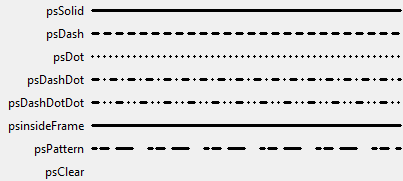 The pen styles available to you are shown at right. See the <code>pen_brush sample project in the <code>examples folder of the Lazarus installation for information on creating custom pen patterns.
<div style="clear: right;">
Usage
editExample 1
edit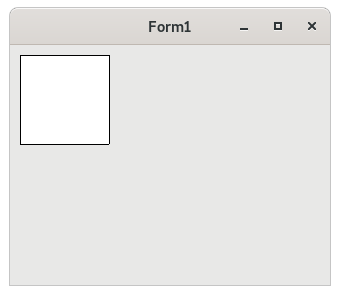 This example draws a rectangle with its upper-left corner at (10, 10) and its lower-right corner at (100, 100) on the form's canvas.
procedure TForm1.FormPaint(Sender: TObject);
begin
  Canvas.Rectangle(10, 10, 100, 100);
end;
<div style="clear: right;">
Example 2
edit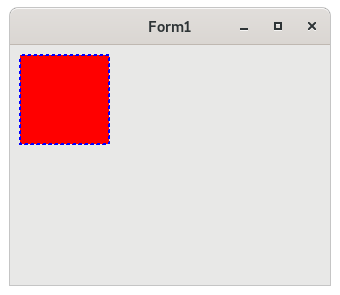 This example draws a red rectangle with a dotted, blue border.
procedure TForm1.FormPaint(Sender: TObject);
begin
  Canvas.Brush.Style := bsSolid;
  Canvas.Pen.Style   := psDot;
  Canvas.Pen.Width   := 2;

  Canvas.Brush.Color := clRed;
  Canvas.Pen.Color   := clBlue;

  Canvas.Rectangle(10,10,100,100);
end;
<div style="clear: right;">
Example 3
edit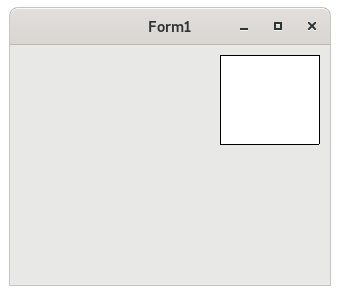 There is also an overloaded version of the Rectangle method which accepts a single TRect argument rather than individual <code>x1, <code>y1, <code>x2 and <code>y2 arguments. This example draws a rectangle on the
upper-right corner of the form's canvas.
procedure TForm1.FormPaint(Sender: TObject);
var
  // A record with the coordinates of the rectangle's four corners.
  R: TRect;
begin
  // Calculate the corners of the rectangle.
  R.Left   := ClientWidth-110;
  R.Top    := 10;
  R.Right  := ClientWidth-10;
  R.Bottom := 100;

  // Draw the rectangle.
  Canvas.Rectangle(R);
end;
<div style="clear: right;">
Example 4
edit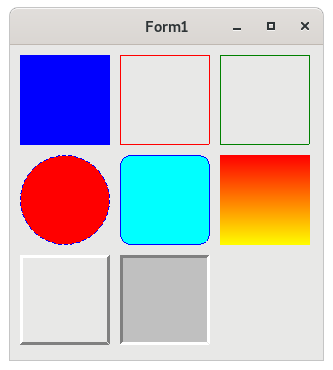 Here is another example that demonstrates more properties.
procedure TForm1.FormPaint(Sender: TObject);
var
  R: TRect;
begin
  // A filled rectangle with no border.
  Canvas.Brush.Color := clBlue;
  Canvas.FillRect(10, 10, 100, 100);

  // An empty rectangle.
  Canvas.Brush.Color := clRed;
  Canvas.FrameRect(110, 10, 200, 100);

  // Another empty rectangle.
  Canvas.Pen.Color   := clGreen;
  Canvas.Frame(210, 10, 300, 100);

  // An ellipse (circle with dual foci).
  Canvas.Pen.Color   := clBlue;
  Canvas.Pen.Style   := psDash;
  Canvas.Brush.Color := clRed;
  Canvas.Brush.Style := bsCross;
  Canvas.Ellipse(10, 110, 100, 200);

  // A rectangle with corner radii.
  Canvas.Pen.style   := psSolid;
  Canvas.Pen.Color   := clBlue;
  Canvas.Brush.Color := clAqua;
  Canvas.Brush.Style := bsSolid;
  Canvas.RoundRect(110, 110, 200, 200, 20, 20);

  // A rectangle filled with a vertical gradient.
  Canvas.Pen.Style   := psSolid;
  Canvas.GradientFill(Rect(210, 110, 300, 200), clRed, clYellow, gdVertical);

  // A raised, empty 3-D rectangle.
  Canvas.Pen.Style   := psSolid;
  R := Rect(10, 210, 100, 300);
  Canvas.Frame3D(R, clWhite, clGray, 3);

  // A sunken, filled 3-D rectangle.
  R := Rect(110, 210, 200, 300);
  Canvas.Frame3D(R, clGray, clWhite, 3);
  Canvas.Brush.Color := clSilver;
  Canvas.FillRect(R);
end;
<div style="clear: right;">