

Installing and testing a new Lazarus Version on Windows
This page describes how to install a 2nd (or 3rd) version of Lazarus on windows. The secondary install is made independent of your existing install.
- This can be used for testing a new release.
- Your existing version will not be changed.
Backup (optional, but recommended)
No matter if you are here to install a new version of Lazarus or not, it is recommended that you regularly backup your data.
IDE Settings
For the IDE you should backup your settings. Those are stored in the "primary config path" (also known as "PCP"). You can find this folder by opening "About IDE" from the menu "View", sub-menu "IDE Internals":
"About Lazarus" in menu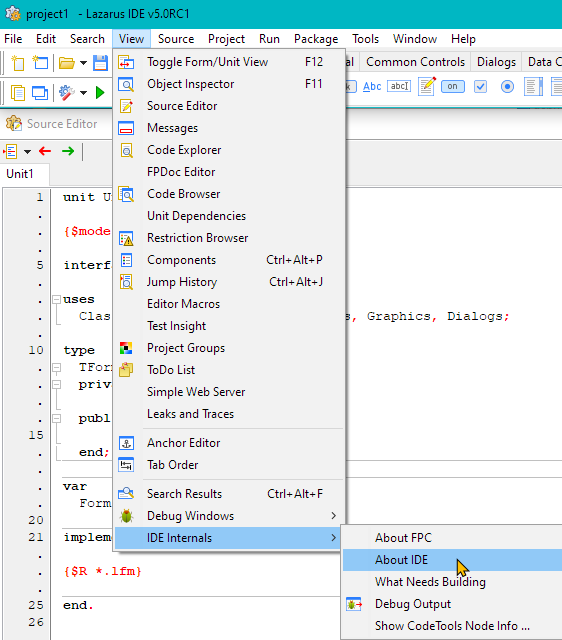 |
"About Lazarus" window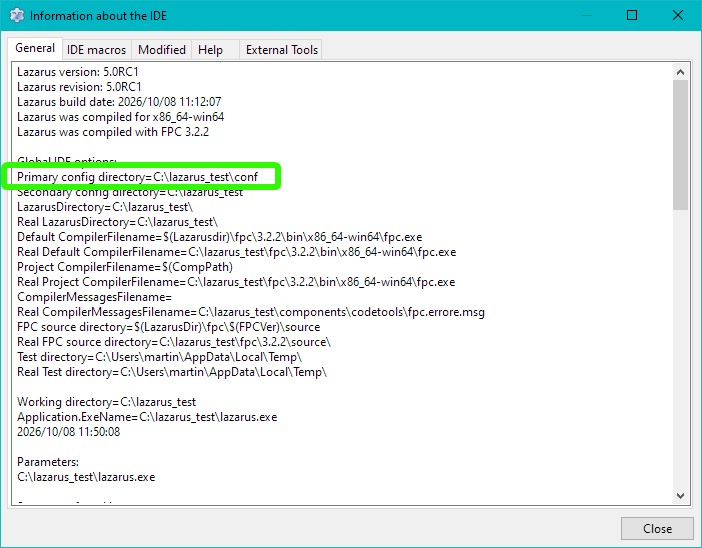 |
Projects
Either
- Copy the folder to a different disk/media
- Use a version management system, with storage on a different media
Installing a 2nd Lazarus version
Installation
The Windows installer will do all the necessary setup for you.
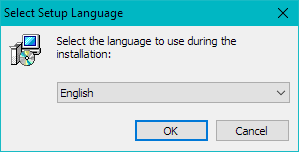
|
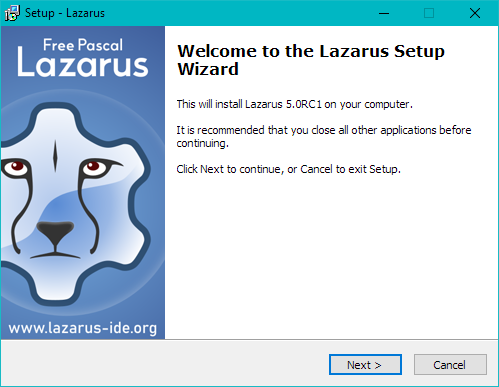
|
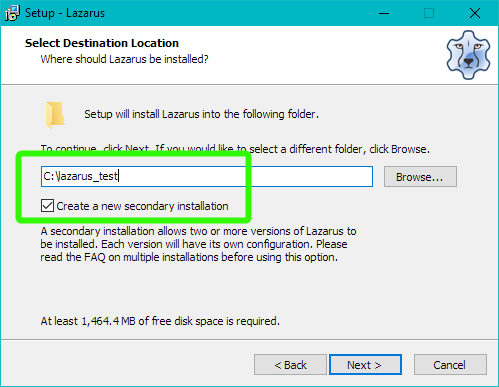
|
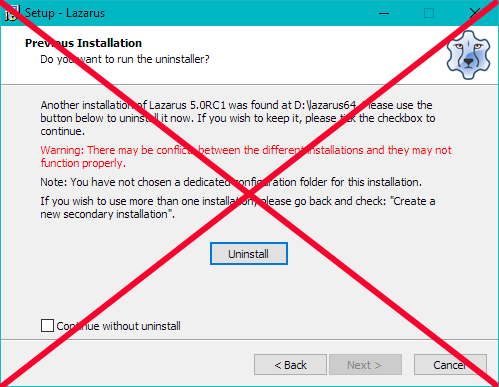
If you get a question about "uninstalling" then you have made a mistake. |
|
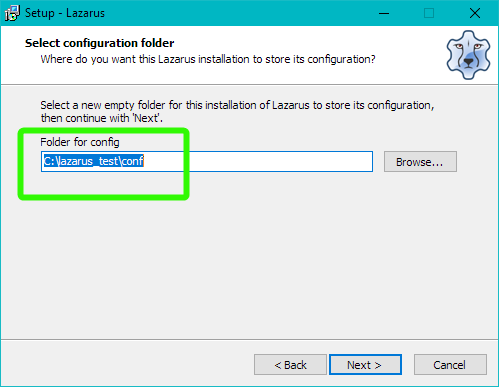
|
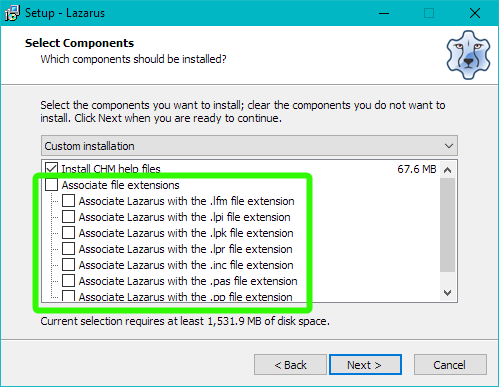
|
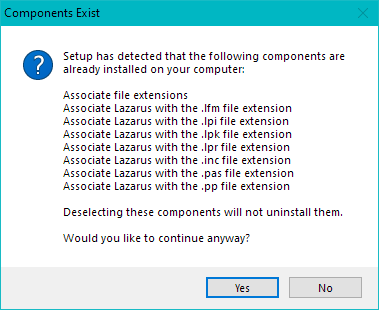
There will be a pop-up that the file extensions are already set.
|
|
|
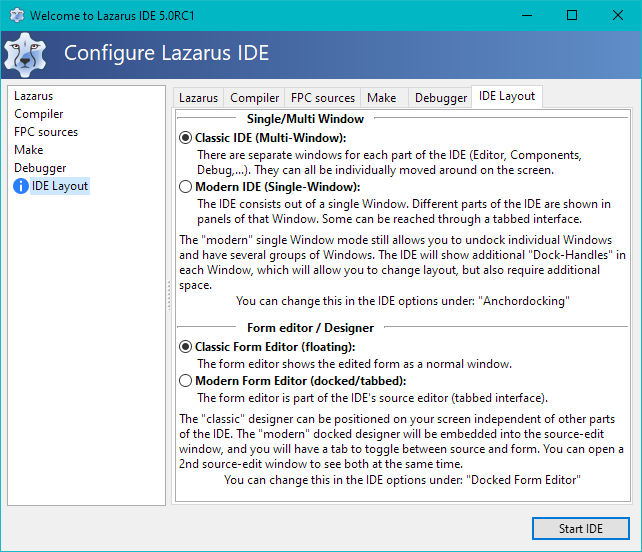
First run of your secondary Lazarus install
Time to start your new Lazarus.
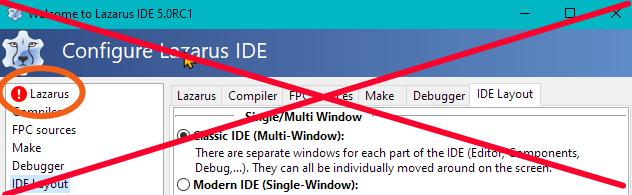
There should be no warnings or errors (red or yellow marks) in the setup. |
|
You can always check "About IDE" (see Backup) to ensure you are using the Lazarus with the correct config path. You can also edit the "Title" of the Lazarus IDE (under menu: Tools > Options > Environment > Window: "Custom IDE Title". Or you can change the colors of the Source editor. This allows you to quickly identify which setup you are currently using. |
|
Testing projects - using "Publish"
Newer versions of Lazarus can save projects in a different format. While they can be configured to use a compatible format, for testing you should use copies of your project.
Step 1: Create copy - Using your old/existing Lazarus IDE
Open your old/existing IDE.
- Open your project
- Select "Publish Project (see image)
- Specify a new empty folder as "Destination directory"
- Un-Check the box "Compress" (this would create a single archive file / but you want a copy of your project in a new folder)
- "Ok"
- Close the IDE
Now a copy of your project is in the new folder.
"Publish Project" in menu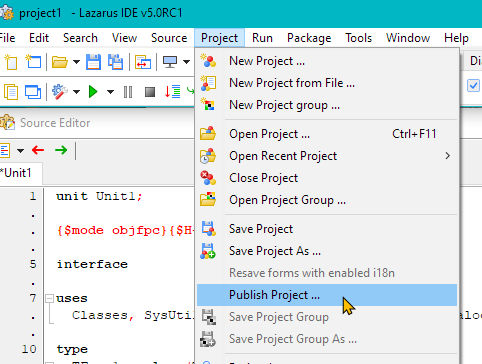 |
"Publish Project" window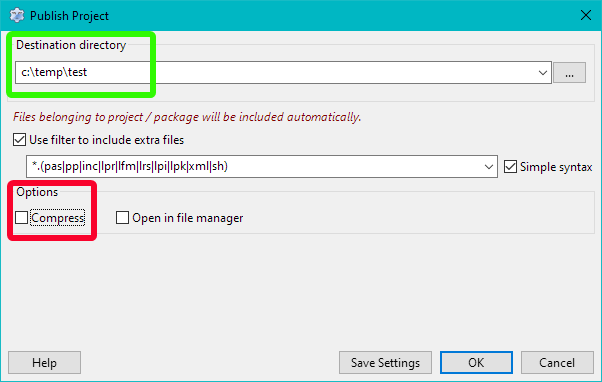 |
Step 2: Open the copy in the new secondary install
Now you can start your new Lazarus installation.
- Use "Open Project" form the "Project" menu
- Select the *.lpi file in the new folder (the folder created by "Publish Project"
- Test your project
Don't forget, any change you make will not be in your original project.
What to test
Once you have finished the above steps you can test that everything works as you expect.
- Compile and Run
- Compile your app, and test if it functions as before.
- Run test cases
- Any other checks...
- Working with the IDE
- Open and edit your forms in the designer
- Navigate your sources in the Editor
- Test tools you often use in the IDE
- Debug the app in the IDE
- Check with heaptrc (if you did in the old IDE, and your app was not leaking)
- ...
You may also want to test creating a new application. If you use templates for new apps then check those too.
Experts only
The below tests are for experienced users only. We do not recommend them unless you fit the description.
*The below tests require frequent changes between the different installed IDE, and additional refined tracking which copy of which project was used for which test. Loosing track of this, can easily mean that development meant for one copy of a project is accidentally made on another copy. * We recommend that this testing is only done if all data is kept in revision control, and you are experienced with using the rcs of your choice, as well as having experience with the Lazarus IDE>
If you already use several Lazarus versions, or plan to do so for reasons other than testing then you might additionally want to test project compatibility between versions.
- Alternately open the published project in your old/original IDE and the new IDE.
- Check for issues with loading sessions (open editors, breakpoints, active tab)
- Check for errors in the designer, due to unknown properties
- ...